Installing mods
Before you start
Mods change the game in ways its developers don’t support. Play it safe:
Back up your game folder
Copy your Gorilla Tag folder somewhere safe so you can roll back.Check compatibility
Every mod page lists its platform, game version, and loader. Only install what matches your setup.Read the mod page
Look at the changelog, comments, and whether source code is linked. A scan lowers risk but can’t promise a file is safe.
Be a good monke
Install on PC VR (Steam or Meta PC)
Install the mod loader
Most mods use BepInEx. Download the version the mod asks for and extract it into your game folder (the one withGorilla Tag.exe).Run the game once
Launch Gorilla Tag, wait for the main menu, then quit. This creates theBepInEx/pluginsfolder.Install dependencies
If the mod lists any under “Needs”, install those first the same way.Add the mod
Put the.dllinBepInEx/plugins. For a.zip, follow the mod’s own install steps — usually you unzip it into the game folder.Play
Start the game. If it doesn’t work, check Troubleshooting below.
Walkthrough with screenshots
Example: installing Hush Monke. Every mod works the same way — BepInEx 5 must already be set up (see above), then it’s four steps.
Click Download on the mod page
Open the mod and hit the green Download button. Check the compatibility box first: game version, platform (Steam PC VR), and loader (BepInEx 5) should match your setup.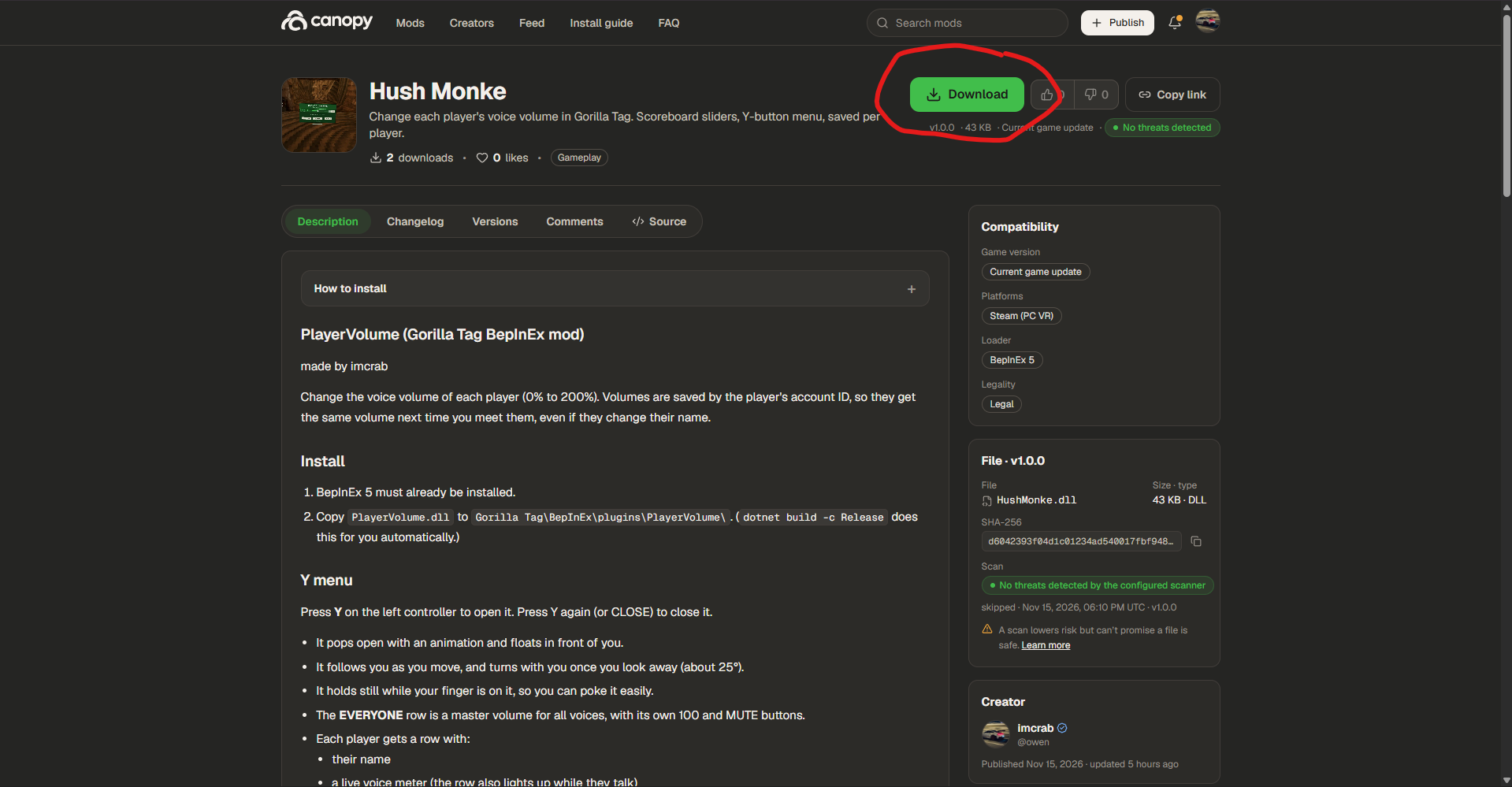
The Download button sits at the top right of the mod page. Keep the file if your browser warns you
Browsers flag.dllfiles as “not commonly downloaded”. That’s normal for mods. If the scan says No threats detected and you trust the creator, choose Download unverified file (Brave shown; Chrome and Edge say Keep).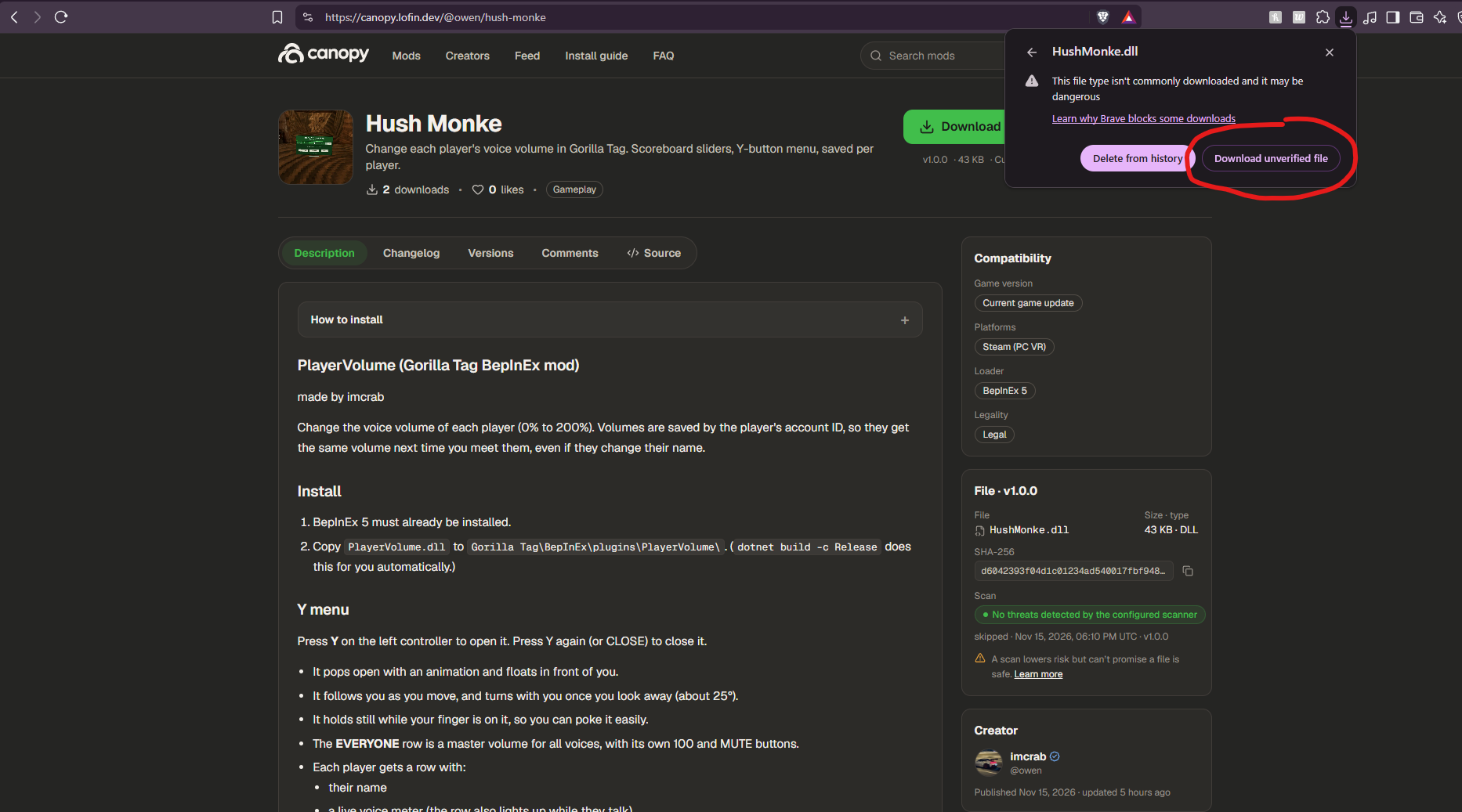
Only keep files from creators you trust. You can verify the SHA-256 shown on the mod page. Find the file in your Downloads folder
Open File Explorer, go to Downloads, and find the.dllyou just saved.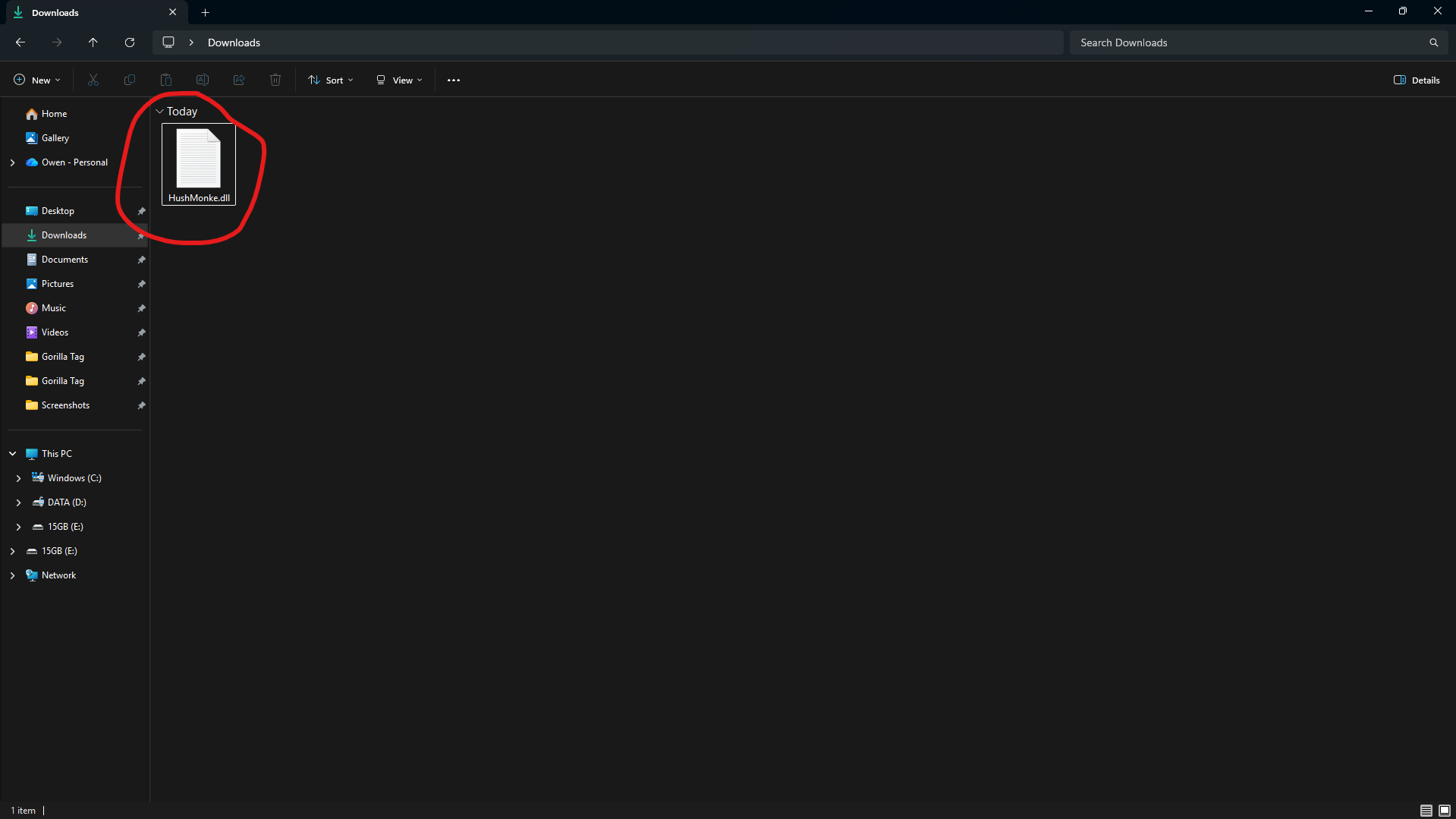
The mod is a single .dll file. Drag it into BepInEx/plugins
Open your Gorilla Tag folder (Steam:steamapps/common/Gorilla Tag), thenBepInEx→plugins. Drag the.dllin. Launch the game and the mod loads.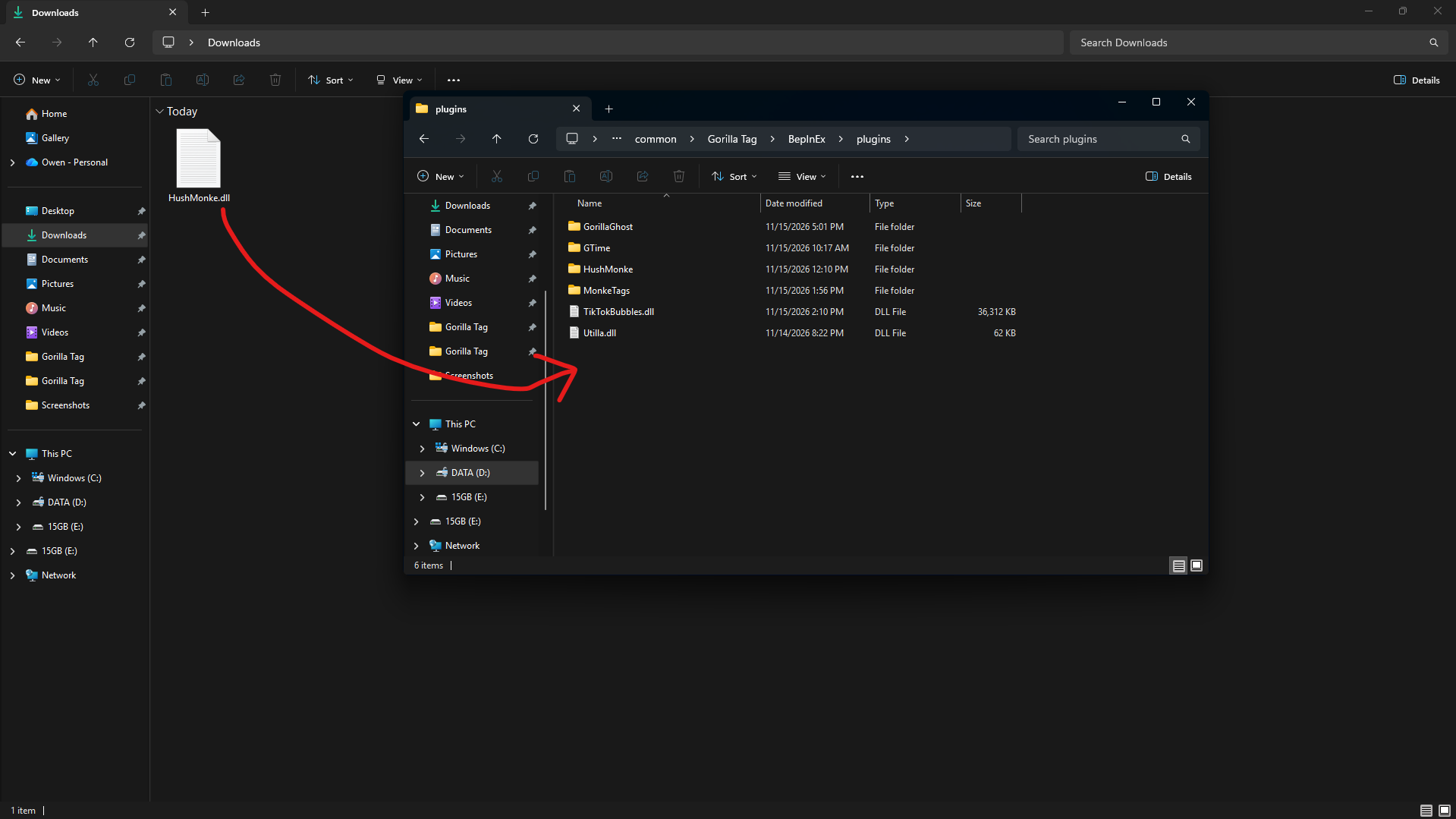
Drag the file from Downloads into the plugins folder. No plugins folder? Run the game once with BepInEx installed.
Some mods need more than a .dll
Check what you downloaded
Every release shows a SHA-256 checksum — a fingerprint of the exact file we scanned. To compare it on Windows, open PowerShell in your downloads folder and run:
Get-FileHash .\YourMod.dll -Algorithm SHA256
If the hash matches the one on the mod page, you have the same file the scanner checked.
Quest standalone
Quest mods need different tools from PC mods and usually involve sideloading. Only install files that list “Quest standalone” as a platform, and follow the creator’s instructions closely — a PC mod won’t work on Quest.
Update or remove mods
Update
Delete the old file fromBepInEx/pluginsand add the new one. Check the changelog for config changes.Remove
Delete the mod’s files. To remove all mods, delete theBepInExfolder andwinhttp.dll.After a game update
Game updates often break mods. Wait for the creator to publish a release marked for the current update.
Troubleshooting
Nothing happens
Make sure BepInEx is installed in the right folder and that you ran the game once before adding mods.The game crashes
Remove mods one at a time to find the culprit. Check that versions match the current game update.Still stuck?
Ask on the mod’s Comments tab — include your game version and what you tried. Report anything that looks malicious.